Home Office Budget: Build a Work-From-Home Setup Without Overspending
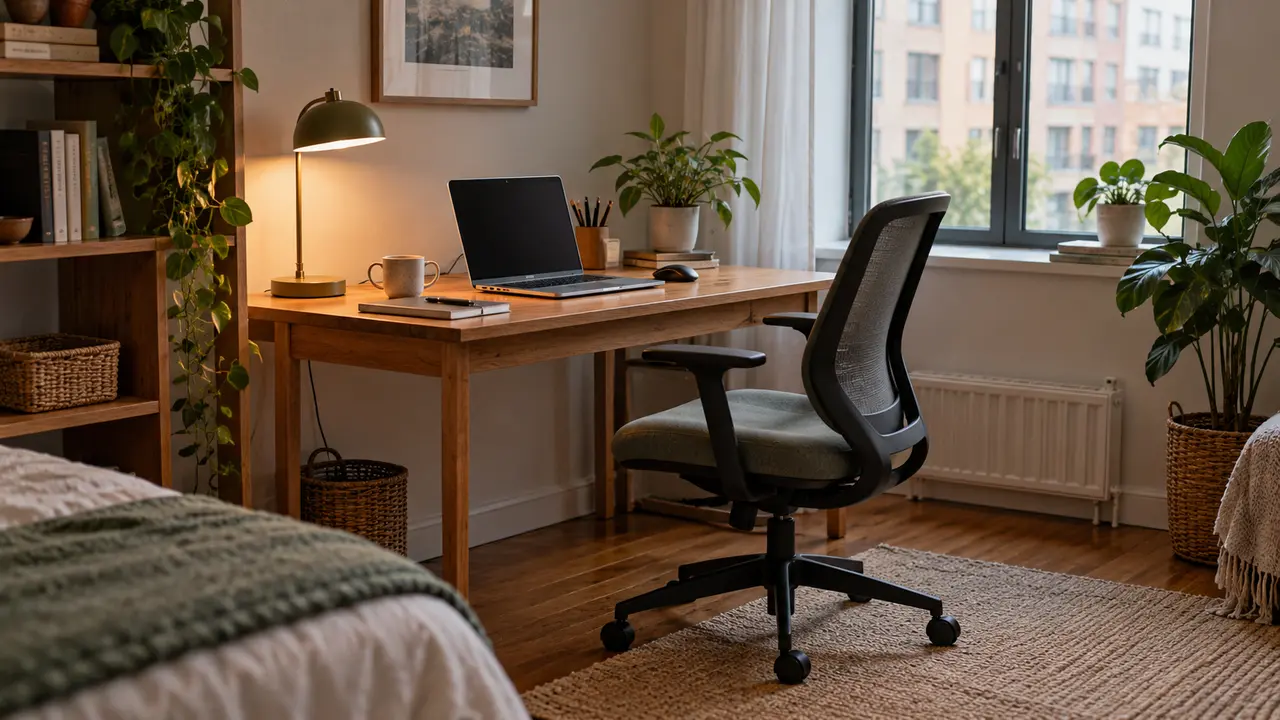
A home office does not need to look like a showroom. It needs to help you do your work, stay safe, and keep costs under control. A solid table, a chair that fits, good light, and a sound internet link may matter more than a new desk or a set of smart lights. Start with the work you do each day, not with a list of products to buy.
This guide is for people who work at home full-time, part-time, or only now and then. It suits a global reader, but prices and labor rules vary by place. The goal is to make a clear home office budget, decide what to buy first, and avoid paying twice for gear you do not need.
First, list the work your setup must support
Write down your most common tasks. Do you spend long hours in calls, type reports, edit photos, or use only a browser? A person who works from a laptop for one hour a day may need far less than someone who works at a desk for eight hours. Your tasks decide what has real value.
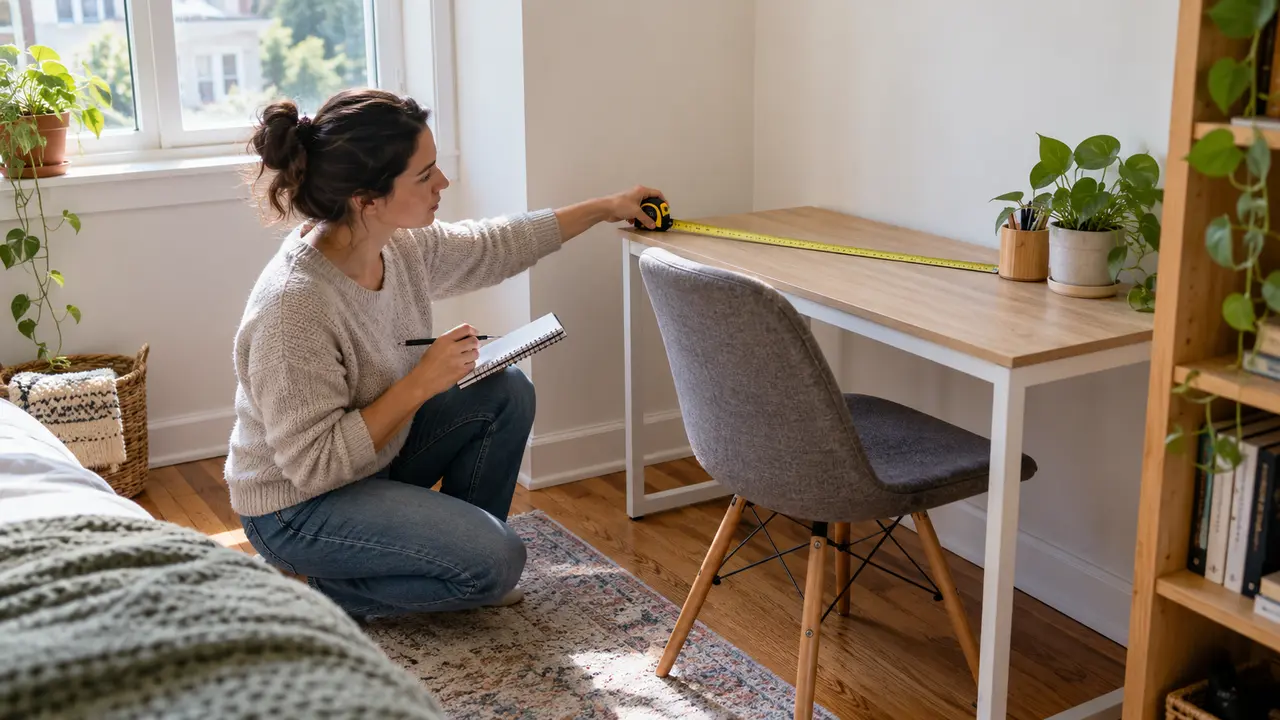
Look at the space you already use. A quiet corner may be enough. Check for power, daylight, room for your knees, and a safe path for cables. If you share a home, ask when the space must be free for other people. A fold-away desk or a work tray may fit better than a large fixed desk.
Before you shop, test what you have for a week. Keep a note of what slows you down. If a chair causes pain, take that seriously. If the only problem is a loose cable, a low-cost fix may solve it. This trial keeps you from buying gear based on a photo of someone else’s office.
Set a cash limit and leave room for one surprise
Pick a total sum you can pay without using rent money, emergency savings, or costly debt. Divide it into must-have items and nice-to-have items. Put a small part aside for a cable, plug, or repair that you did not plan for. If you cannot buy all the items now, build the setup in steps.
A simple example uses 500 units as a full cap. You might set 180 for a chair, 110 for a desk or table, 80 for light and audio, 60 for internet or power needs, and 70 as a reserve. These numbers are only a sample. Prices differ widely across countries. Replace each sum with quotes from shops near you and check tax and delivery fees.
Do not use the full cap on the first day. Use what is on hand first, then spend on the part that causes the most strain or lost time. This is a budget rule, not a reason to work in an unsafe spot. If your employer should supply gear under local rules, ask what support is offered before paying yourself.
Start with comfort and safety
A chair and desk that fit your body
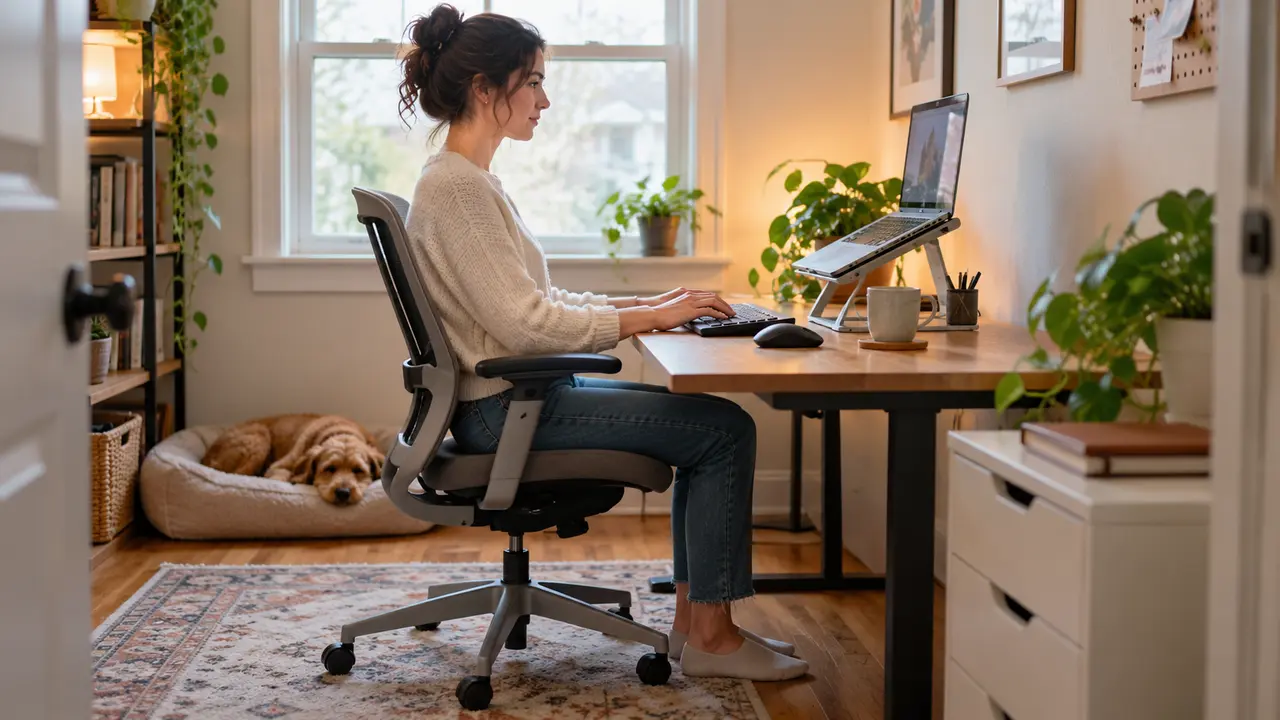
A chair should let you sit with your feet on the floor or on a firm footrest. Your arms should rest with ease when you type. A desk needs space for the tools you use most. You do not need a costly chair to do this, but a chair that hurts you is poor value even if it looks good.
The World Health Organization and International Labour Organization issued a joint brief on healthy and safe telework. It looks at how home work can affect health and how work spaces can be set up with care. Its guidance supports thinking about posture, work breaks, and a safe work area before you chase new devices.
If you shop for a used chair, test the seat and back. Check that the base is stable and that height parts work. Ask whether you can return it if a fault shows up. For a desk, measure your door and the space where it will stand. A cheap item that does not fit can cost more once you add return or moving fees.
Light and screen position
Put the screen where you can see it without leaning forward. Set it to avoid glare from a window. A small desk lamp may help if the room is dark. Test a lamp at the time you work, not just in the store. Bright light aimed at your eyes may be worse than a softer light aimed at the desk.
For long laptop work, a stand with a separate keyboard and mouse can make screen height easier to adjust. But check the cost before buying all three. If you use a large screen only for short calls, you may not need a second monitor. Choose tools for a real need.
Spend on the weak link in your video calls
A clear voice is often more useful than a costly camera. Test your current microphone in a call with a friend. Ask if they hear echo, fan noise, or a low voice. Sometimes moving to a quiet room or using the headset you already own solves the issue.
If you need a headset, check comfort, mic quality, the type of plug, and whether it works with your device. Read the return terms. A wired headset may suit a desk job if you do not need to walk around. A wireless set can add charge time and the chance of a lost link. Neither is always best.
A separate webcam should be a later buy unless the one in your laptop is too poor for your work. Try better light first. Move a lamp or face a window to see if it helps. No camera can fix a slow internet link or a noisy room.

Count the costs that arrive each month
The first bill for a desk is easy to see. The ongoing bills are less clear. Check internet fees, extra mobile data, power use, paid software, cloud space, and small tools. If you pay a fee each month, multiply it by twelve before you choose a plan. A cheap monthly price can add up.
Ask your employer if it will cover a share of work costs. Some firms provide a laptop, a screen, or an allowance. The rules may depend on your contract and local law. Keep a record of what the employer owns and what you own. Do not assume you can take company gear when a job ends.
If you use a shared family internet plan, do not count the full price as a new work cost. Count only the extra fee caused by your work, or use a fair agreed share. That gives you a more honest budget. Check data caps and upload speed if video calls fail, not just the speed in a sales ad.
Used gear can help, but check it well
A second-hand desk, chair, lamp, or monitor can save money. Check the item in good light. Look for cracks, loose parts, and worn cables. For a screen, test all ports and look for dead pixels. For a chair, try each height or tilt control. Ask for a receipt when possible.
Be more careful with used power strips, chargers, and battery packs. A damaged power item can pose a safety risk. Check it against local safety standards. If you cannot verify its condition, buy a safe new one from a trusted seller. A low price is not worth the risk of fire or harm.
Check the total delivered price. A large used desk may be cheap until you add a van, a helper, and an hour of your time. A small new table with delivery may cost less overall. Compare like for like, including size, warranty, returns, and the time needed to set it up.
Build the setup in three stages
Stage one: make the current space work
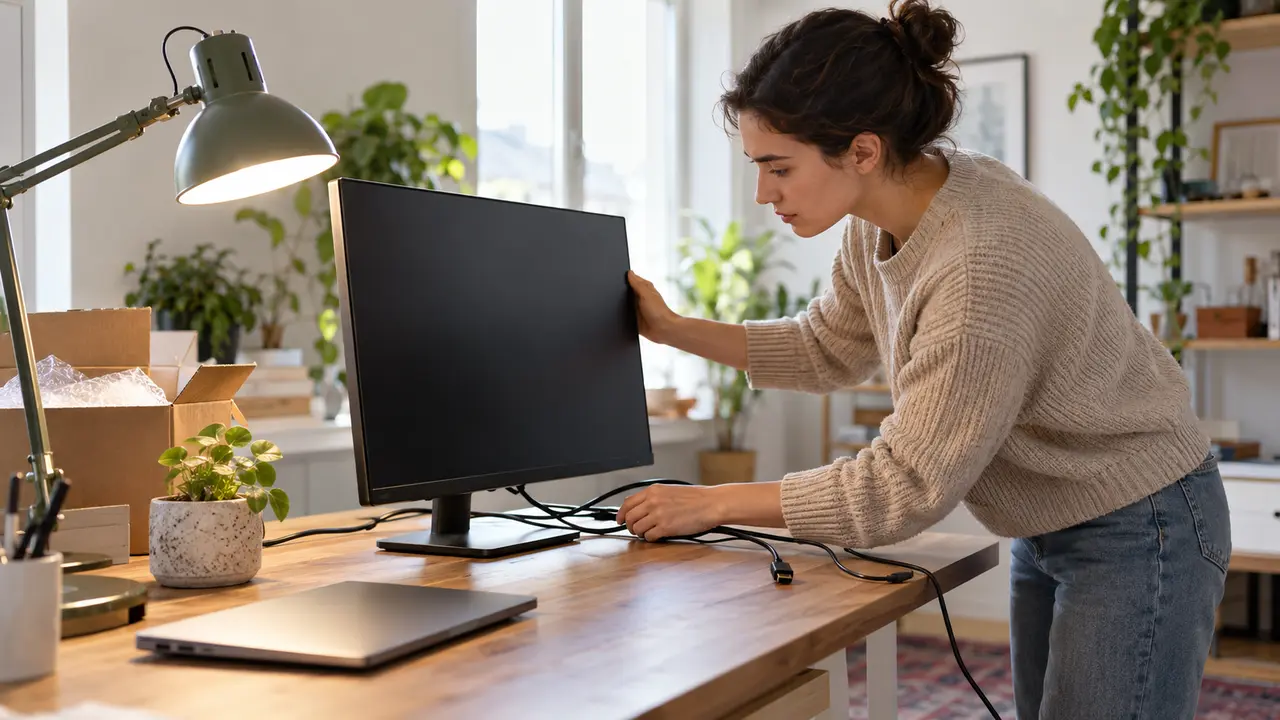
Clear enough room to work. Move the screen out of glare. Tie back loose wires. Use a firm chair and table you already have. Set a reminder to move and rest your eyes. Check if the tasks you do each day feel easier after these simple steps.
Stage two: fix the main daily problem
Use the notes from your trial week. Pick only one top problem. That might be a chair that hurts, weak audio, or poor light. Set a price cap, compare two or three options, and test the item as soon as it arrives. Keep the box and receipt until the return window ends.
Stage three: add tools only after use proves the need
A second screen, dock, desk mat, or storage shelf may be useful later. Wait until you can name the work it will improve. If you cannot explain the gain, hold the cash. Your setup may stay simple for years, and that is fine.
A sample check before you buy
Say you have a slow laptop but spend most of your time on video calls. A new desk may not fix the issue. Test the internet and the call app first. Close unused programs, check your headset, and see if an employer laptop is available. If the device is still too slow for work, compare a repair with a suitable replacement. Do not assume the most costly device is the right one.
A freelancer may face a different choice. They may need a spare way to get online if a client call cannot wait. A low-cost mobile data backup could offer more value than a second large monitor. For a person who edits photos, a screen with fair color may matter more. The right budget follows real tasks.
Keep the space useful over time
Once a month, wipe screens, check cables, and clear dust from vents as the maker advises. Review paid software and cancel tools you no longer use. Keep key work files backed up in a safe place. For shared or work-owned devices, follow the right rules for data and access.
Do not buy a new item just because a new model is out. Ask whether your current tool still does the job. If a repair is safe and costs less, it may be a good choice. If a broken chair or unsafe cable poses a risk, deal with it soon rather than wait for a sale.
The one-page home office budget
Write your cash cap at the top of a page. Then mark each item as owned, needed now, or later. Add price, delivery fee, and return date for each planned buy. Keep a small reserve and note any monthly bill. That page is enough to guide most home office choices.
- List the tasks and space you have
- Fix safety or comfort gaps first
- Test what you own before buying
- Check total cost, returns and monthly fees
- Review the setup after a month
A good home office is one that lets you work well and stay within your means. Spend where it solves a problem. Save where it does not. Use the setup for a few weeks before you choose the next upgrade.